Dev Containers + ROS2
Getting ROS2 up and running on a new machine is notoriously painful — dependency conflicts, wrong distro versions, “works on my machine” headaches. Dev containers solve this by packaging everything you need (ROS2, build tools, libraries, editor config) into a single Docker container. Open the project, click build, and you have a complete, ready-to-code ROS2 environment — batteries included, no manual setup required. This guide walks you through how to configure and build one from scratch.
Why use Dev containers?
- Isolation: Ensures that the ROS2 environment is consistent and isolated from the host system, avoiding conflicts with other installed software.
- Reproducibility: Allows for the creation of a consistent development environment that can be shared among team members, ensuring everyone uses the same tools and dependencies.
- Portability: Containers can be run on any system that supports Docker, making it easy to move between different machines and environments.
- Simplified Dependency Management: All dependencies and tools required for ROS2 development are specified within the container, simplifying the setup process.
- Version Control: Different versions of ROS2 or its dependencies can be managed easily by switching between different container images.
How to set up a Dev container?
There are 3 different types of files that are needed to set up a dev container.
- Dockerfile: Instructions to build the containers.
- docker-compose.yml: provide the configuration to build, run and combine the images built using Dockerfile.
- devcontainer.json: This file uses the docker-compose.yml files to build the services and also provides configuration for vs-code to work with the target service.
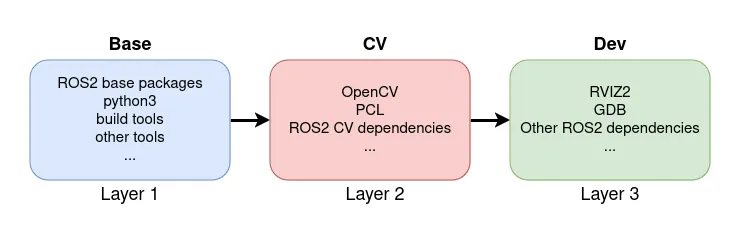
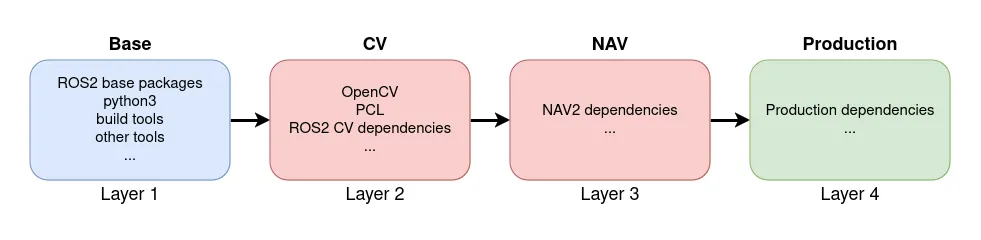
Lets set these up for a container layer structure as below.
1. Dockerfile
Multistage builds are used to separate container functionalities. Four stages are used here:
ARG ROS_DISTRO=jazzy
ARG ROS2_DEV_IMAGE=ghcr.io/<user>/ros2_dev:latest

FROM ros:${ROS_DISTRO} AS ros2_base
ENV ROS_DISTRO=${ROS_DISTRO}

...

## Computer vision stage
FROM ros2_base AS ros2_cv

ARG DEP_FILE="computer_vision"
COPY ./dependencies/${DEP_FILE} /tmp/${DEP_FILE}
RUN apt-get update && \
    apt-get install -y $(cut -d# -f1 </tmp/${DEP_FILE} | envsubst) \
    && rm -rf /var/lib/apt/lists/* /tmp/${DEP_FILE}

## Development stage
FROM ros2_cv AS ros2_dev

...

## Local stage - built locally to match host user UID/GID, never pushed to registry
FROM ${ROS2_DEV_IMAGE} AS ros2_local

ARG USER_NAME=ros
ARG USER_ID=1000
ARG GROUP_ID=1000

RUN ... # create user matching host UID/GID with sudo access

USER $USER_NAME
RUN echo "source /opt/ros/${ROS_DISTRO}/setup.zsh" >> /home/${USER_NAME}/.zshrc
The first three stages (ros2_base, ros2_cv, ros2_dev) are built once in CI and pushed to a container registry. The ros2_local stage is built locally — it layers on ROS2_DEV_IMAGE and creates a user that matches the host UID/GID. This keeps local builds fast since only the thin ros2_local layer is rebuilt.
Dependencies are listed in separate files under dependencies/ (e.g. base, computer_vision, development). The envsubst call substitutes $ROS_DISTRO in package names like ros-$ROS_DISTRO-vision-opencv. The file can be found here.
2. docker-compose.yml
The compose file builds the ros2_local stage and configures the container runtime.
# docker-compose.yml
services:
  dev: # name of this service, used in devcontainer.json
    build:
      context: .
      dockerfile: Dockerfile
      target: ros2_local
      args:
        USER_NAME: $USER_NAME
        USER_ID: $USER_ID
        GROUP_ID: $GROUP_ID
        ROS2_DEV_IMAGE: ${ROS2_DEV_IMAGE:-ghcr.io/mro47/ros2_dev:latest}
    container_name: ros2_dev
    stdin_open: true
    tty: true
    network_mode: host
    ipc: host
    user: $USER_NAME
    devices:
      - "/dev/video0:/dev/video0" # webcam
    volumes:
      - /tmp/.X11-unix:/tmp/.X11-unix:rw # gui applications
      - ..:/home/$USER_NAME/ros2_dev    # project workspace
      - "/dev/bus/usb:/dev/bus/usb"     # usb access
    environment:
      - DISPLAY=$DISPLAY
      - QT_X11_NO_MITSHM=1
ROS2_DEV_IMAGE defaults to the pre-built image from the registry. Pass --local to export_env.sh to override this and build all stages locally instead.
This file is here.
3. devcontainer.json
We configure the dev container using the compose file above.
{
  "name": "ros2_dev",
  "dockerComposeFile": [
    "docker-compose.yml"
  ],
  "service": "dev",
  "workspaceFolder": "/home/${localEnv:USER}/ros2_dev",
  "mounts": [
    "source=${localEnv:SSH_AUTH_SOCK},target=/ssh-agent,type=bind,readonly"
  ],
  "remoteEnv": {
    "SSH_AUTH_SOCK": "/ssh-agent"
  }
}-
name:is the name of the dev container. -
dockerComposeFile:the compose file used to build this dev container. -
service:the service we will work in,devin our case. -
workspaceFolder:the directory inside the container opened in vs-code on start. -
mountsandremoteEnv:forward the host SSH agent socket into the container for git credentials.
VS code extensions
vs-code extensions can be automatically installed into the dev container by adding them to the customizations.vscode.extensions list in devcontainer.json:
"customizations": {
  "vscode": {
    "extensions": [
      "ms-python.python",
      "ms-vscode.cpptools",
      "ms-vscode.cmake-tools"
    ]
  }
}
This is purely a vs-code convenience — the extensions listed here have no effect when using docker-compose or devcontainer-cli directly. A minimal set of extensions for ROS2 development might include C/C++ tooling, CMake support, and Python language support.
For more info see this vs-code article.
Build
1. Exporting environment variables
Before building the containers a .env file must be configured. This contains the users UID, GID, name and group name which will be used to create a non-root user inside the dev container. This will also ensure the user has permissions to the mounted files and directories.
To generate the .env file in .devcontainer
# from ros2_dev root
bash export_env.sh
Pass --build-local to build all stages locally instead of pulling ros2_dev from the registry:
bash export_env.sh --build-local2. Build the container in VS code
Make sure you have the Dev Containers extension installed in vs-code.
Open ros2_dev directory in vs-code > press F1 > Dev Containers: Rebuild and Reopen in Container.
Usually once built vs-code will ask you to open this directory in container, which you can say yes. Or from command palette F1 and run Reopen in Container.
NOTE if the build fails, reopen in local folder option will show you logs. also see
3. For non VS code users
The initial setup remains the same. Generate the .env file in .devcontainer.
# from ros2_dev root, with --build-local if required
bash export_env.sh
3.a Using docker-compose
To build or run the containers
# from ros2_dev root
docker compose -f .devcontainer/docker-compose.yml up -d
To get shell access into the container while its running.
docker exec -it ros2_dev /bin/bashTo stop the containers.
# from ros2_dev root
docker compose -f .devcontainer/docker-compose.yml down
3.b Using devcontainers-cli
The cli version of the vs-code extension can also be used.
To build and start the container. This achieves the same as running Devcontainers: Rebuild from vs-code’s command prompt.
# from ros2_dev root
devcontainer up --remove-existing-container --workspace-folder .
To get shell access into the container while its running. This achieves the equivalent as running Devcontainers: Reopen in Container in vs-code.
# from ros2_dev root
devcontainer exec --workspace-folder . bash
To stop the container
# from ros2_dev root
docker compose -f .devcontainer/docker-compose.yml down
Workspace
ros2_ws/src/ is excluded from git — source packages are not tracked in this repo. Instead, add your ROS2 packages to ros2_ws/.repos using the vcstool format:
# ros2_ws/.repos
repositories:
  my_package:
    type: git
    url: https://github.com/your-username/my_package.git
    version: main
Then inside the container, clone them into src/:
vcs import ros2_ws/src < ros2_ws/.reposBuild as usual with colcon:
cd ros2_ws && colcon buildExamples
The dev containers we created above can be now used in various configurations as below and can be extended for complex production environments.
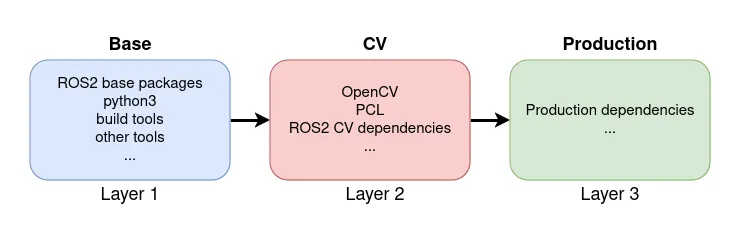
Production environments
The dev environment can simply be switched for a production container that usually will have dependency install instructions, launch files, config files and launch scripts.
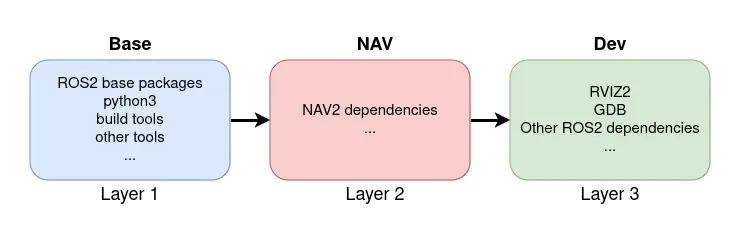
Other ROS2 environments
Developers can swap the computer vision container for example here the navigation container that builds over the same ROS2 base. This will ensure they start from the same base environments.
Combined production environment
Finally the computer vision and navigation environments can be combined as below and a final production environment can be built that combines the configurations and launch scripts of both the development environments.
Conclusion
Leveraging Docker containers for ROS2 development offers significant advantages, including isolation, reproducibility, and simplified dependency management. By utilizing dev containers, developers can create consistent and portable development environments that are easy to share and maintain. Whether you choose to use vs-code’s dev containers or a more manual approach, this method will streamline your ROS2 development, making it more efficient and reliable.
For any issues and pull requests the code is here.
Thanks
Marcello for reviewing and editing the code.